
Hypen Studio
An in-browser IDE for developing, debugging, and previewing Hypen apps across platforms
Hypen Studio
Hypen Studio is a full-featured, in-browser IDE for building Hypen applications. It combines a code editor, live preview, debugging tools, and device integration into a single workflow — so you can write, preview, and debug your app on Web, Android, and iOS without leaving the browser.
hypen studioStudio opens at http://localhost:5173 by default.
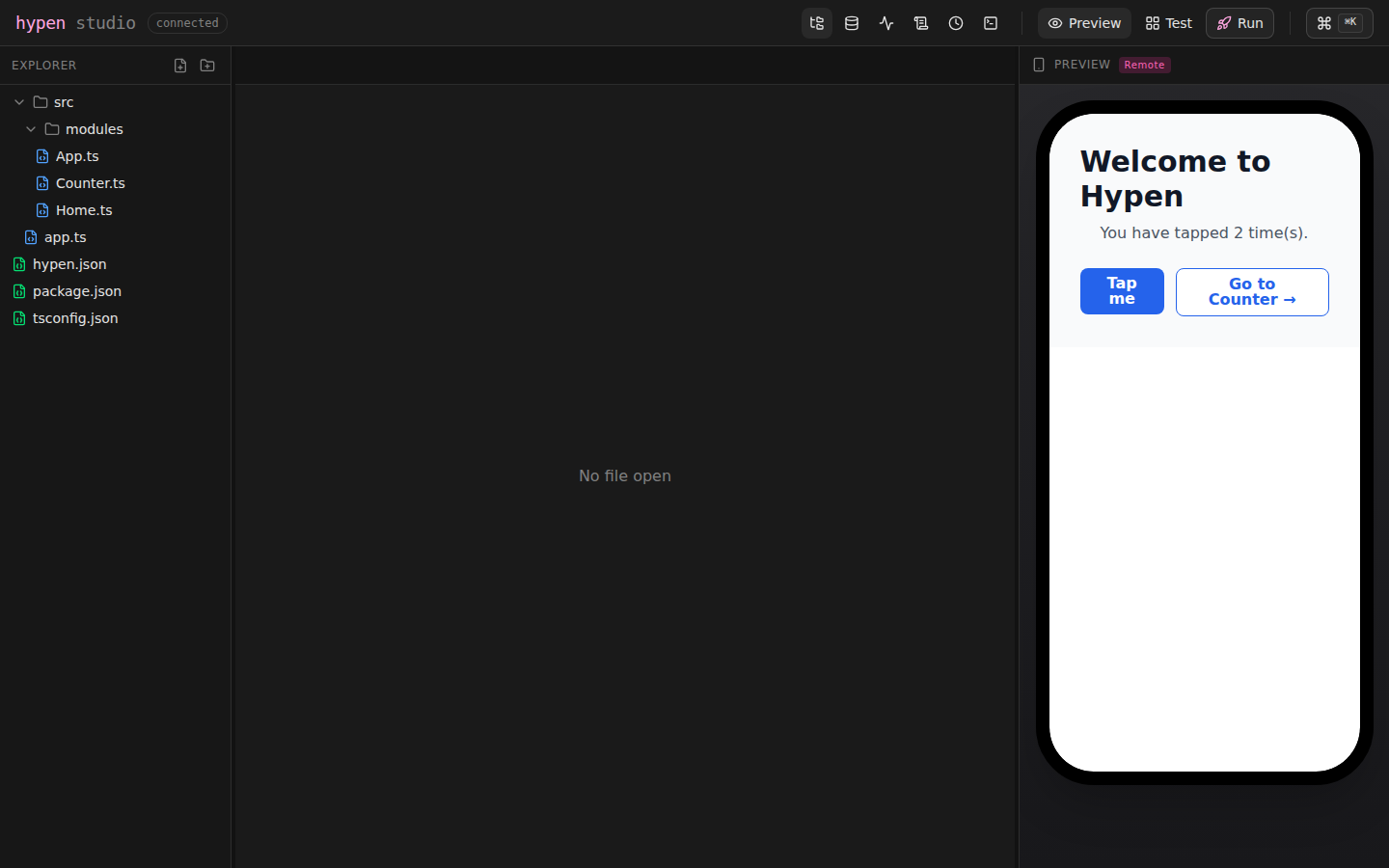
For server-based projects (script entry in hypen.json), Studio starts
your entry script automatically — or reuses a dev server that is already
running on the configured port — and connects the preview to it. One
command, no second terminal.
Features at a Glance
| Feature | Description |
|---|---|
| Code Editor | Monaco-based editor with syntax highlighting and LSP support |
| Live Preview | Real-time rendering of your components as you type |
| File Browser | Full project file tree with create, rename, copy, and delete |
| State Inspector | Real-time view of your module's current state |
| Action Log | Every dispatched action with timestamps and payloads |
| Timeline | State history browser with time-travel debugging |
| Terminal | Integrated shell (PTY) — run commands without leaving Studio |
| Device Preview | Preview on Android and iOS alongside the editor |
Getting Started with Studio
In an Existing Project
If you already have a Hypen project (created with hypen init), just run:
cd my-app
hypen studio
From Scratch
Studio works with any Hypen project. Create one and launch Studio:
hypen init my-app
cd my-app
hypen studio
The Editor
Studio uses Monaco (the engine behind VS Code) for code editing. It supports:
- Syntax highlighting for
.hypen,.ts,.tsx,.js,.json,.css, and.mdfiles - Multi-tab editing — open as many files as you need
- Language Server Protocol (LSP) — if
@hypen-space/lspis installed, you get completions, diagnostics, and hover info for.hypenfiles - Auto-save — changes are saved and hot-reloaded automatically
Live Preview
The preview panel renders your entry component in real time. As you edit .hypen templates or .ts modules, changes appear immediately — no manual refresh needed.
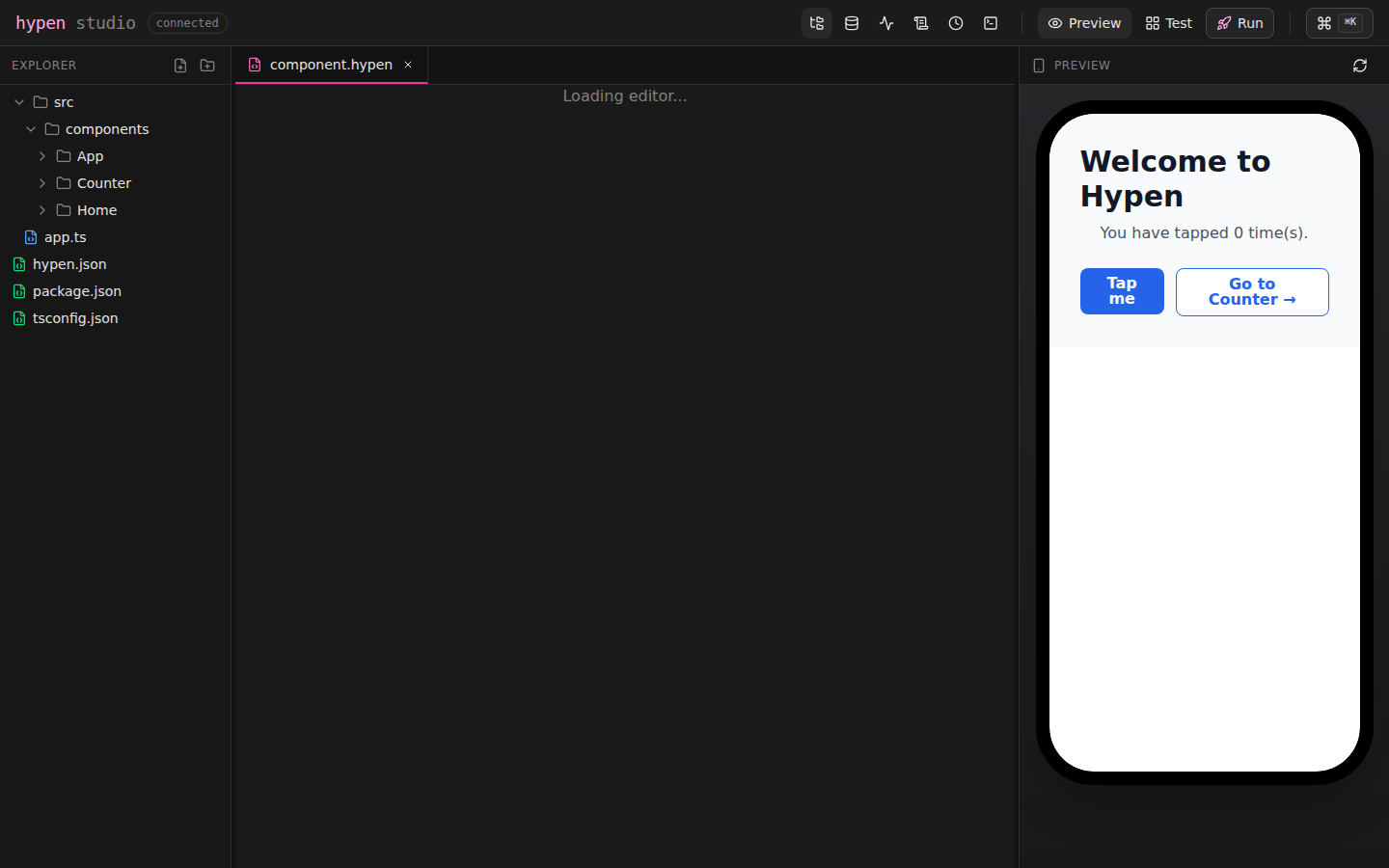
Components referenced by bare name (like Home() inside a Router) are
auto-discovered from the components directory — nested folders and sibling
component folders both resolve, matching the dev server's discovery rules.
The preview uses the same rendering pipeline as hypen dev, so what you
see in Studio is exactly what your users will see in the browser.
File Browser
The file tree shows your full project structure. You can:
- Create new files and folders
- Rename files and folders
- Copy and paste files
- Delete files and folders
All changes are immediately saved to disk and trigger hot reload.
Debugging Tools
Studio's bottom panel provides four debugging views, accessible via tabs or keyboard shortcuts.
State Inspector
Shows the current state of your active module as a live JSON tree. Every time state changes — from an action, lifecycle hook, or two-way binding — the inspector updates instantly.
Action Log
Every action dispatched from your UI is logged with:
- Action name
- Timestamp
- Full payload
This makes it easy to verify that buttons, inputs, and other interactive elements are firing the right actions with the right data.
Console
Captures console.log, console.warn, and console.error output from your module code, categorized with timestamps. Useful for debugging action handlers and lifecycle hooks.
Timeline (Time-Travel Debugging)
The timeline records every state snapshot as your app runs. You can:
- Scrub through history using a slider to see the state at any point in time
- Preview past states — the live preview updates to show the UI as it appeared at that moment
- Go Live — click the "Go Live" button to return to the current state and resume normal operation
This is especially powerful for debugging complex state flows — you can step through exactly how state evolved across a sequence of actions.
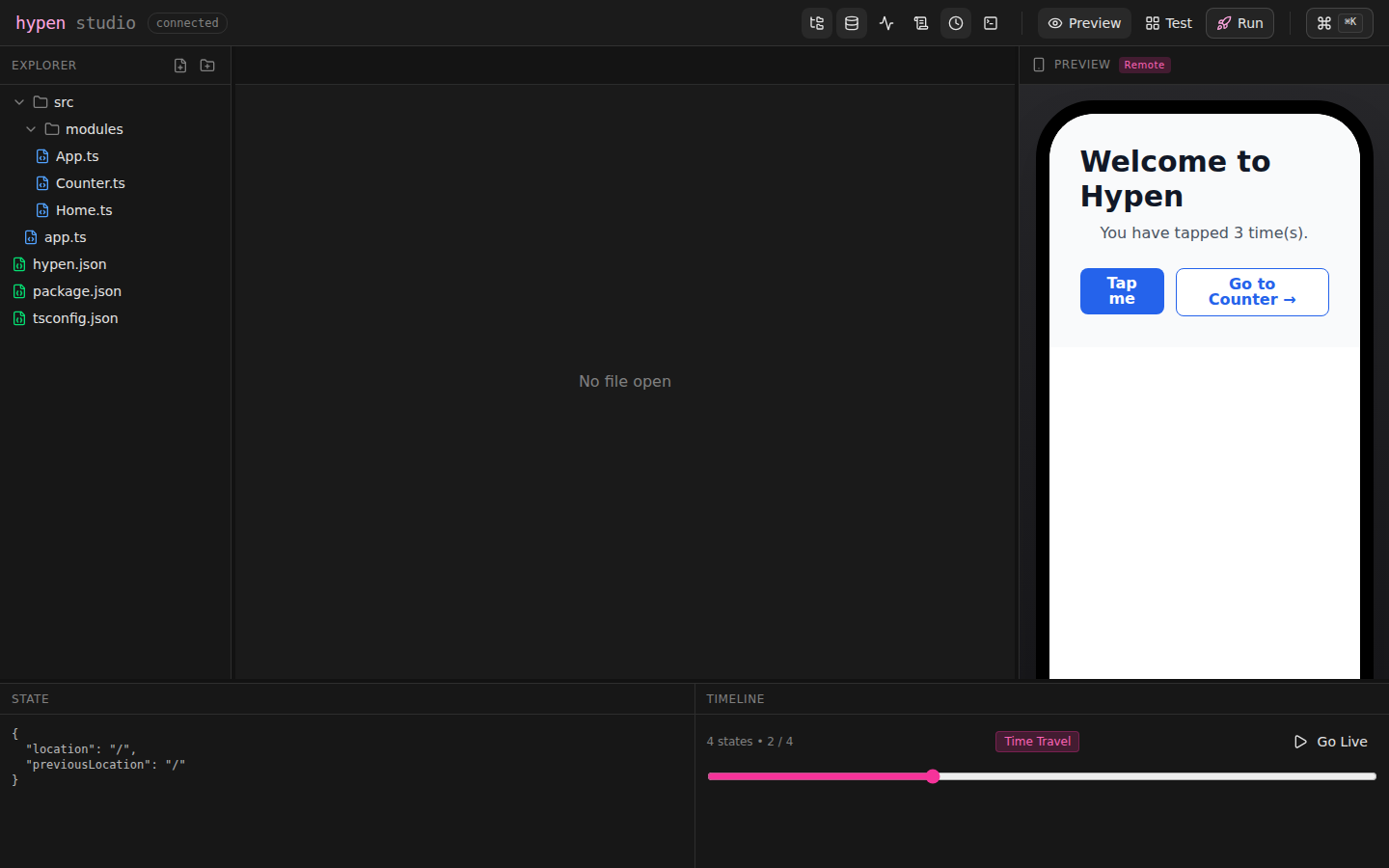
Note: the State panel and Timeline currently track the primary module's
state. State owned by nested route modules (for example a counter mounted
via a Route) is not yet captured in snapshots or restored by time travel.
Integrated Terminal
Studio includes a full PTY terminal. Run any shell command — install packages, run tests, check git status — without switching windows.
Open it with Cmd/Ctrl+T or from the bottom panel tabs.
Keyboard Shortcuts
| Shortcut | Action |
|---|---|
Cmd/Ctrl+K | Command palette |
Cmd/Ctrl+S | Save file |
Cmd/Ctrl+B | Toggle file browser |
Cmd/Ctrl+Shift+S | Toggle state inspector |
Cmd/Ctrl+J | Toggle console |
Cmd/Ctrl+T | Toggle terminal |
Cmd/Ctrl+Shift+T | Toggle timeline |
Esc | Close command palette |
Test Mode
Test Mode (hypen test, or the Test button in the toolbar) turns
Studio into a multi-surface preview board: live web cells rendered with the
DOM or Canvas renderer, next to Android and iOS device mirrors.
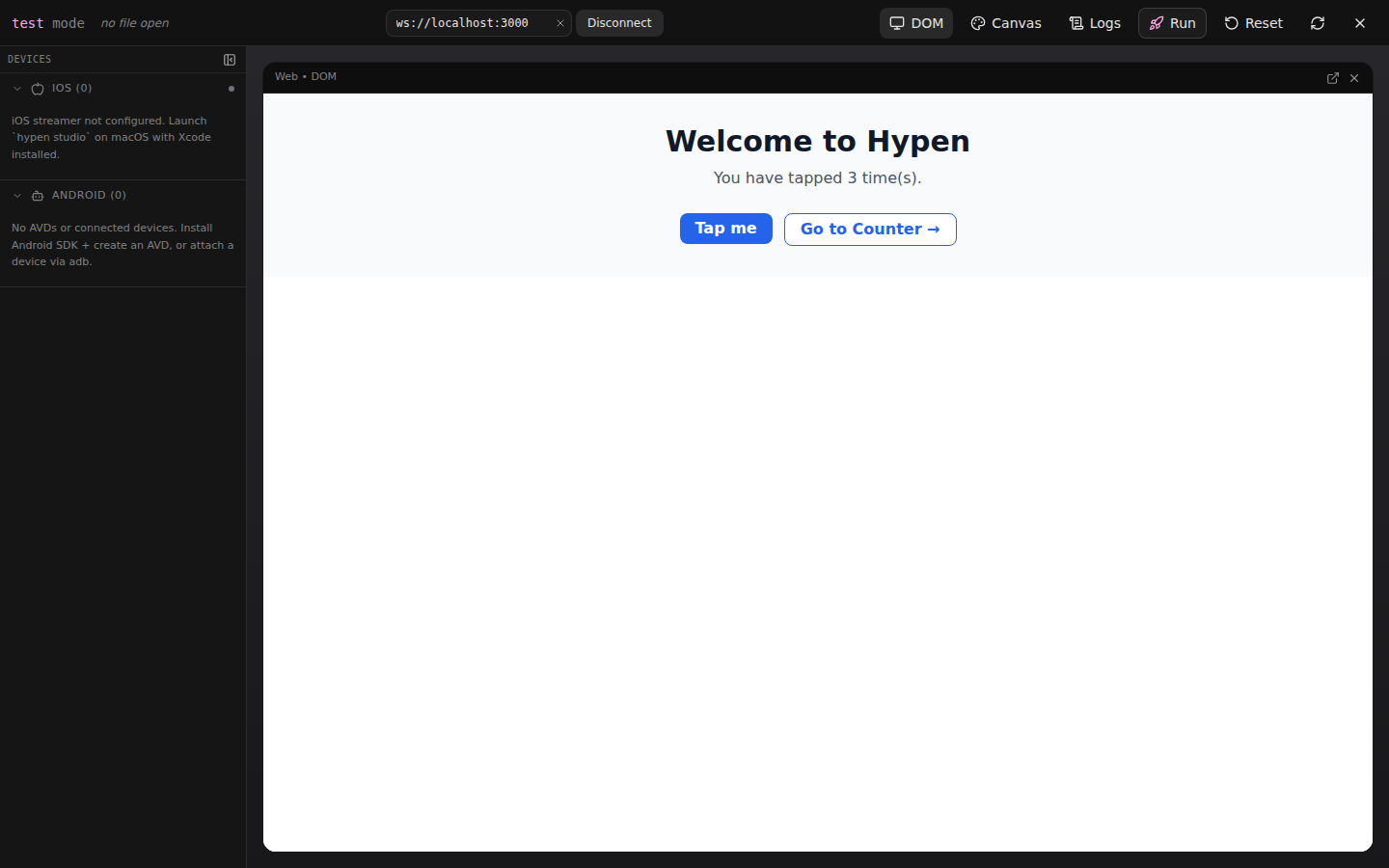
Every cell is fully interactive and connected to the same dev server, with
actions mirrored across surfaces — tap a button in the web cell and every
other cell (and any connected device) updates too. Inside a project,
hypen test starts the dev server for you; outside one, paste a ws://
URL into the Connect input to attach to any running Hypen server.
Preview on Android and iOS
Studio integrates directly with Hypen's native device runners. Use the --studio flag with hypen run to edit in the browser and preview on a device simultaneously:
# Edit in Studio, preview on Android
hypen run android --studio

# Edit in Studio, preview on iOS Simulator
hypen run ios --studio
This starts the device runner (WebSocket dev server on port 3000) and opens Studio (on port 5173) side by side. Changes you make in Studio are hot-reloaded on the connected device in real time.
You can also run all three at once — web preview in Studio, plus a device:
hypen run android --studioThe Studio preview shows the web rendering while the physical device or emulator shows the native rendering, both updating live as you edit.
Requirements for Device Preview
- Android:
adb(Android SDK platform-tools). Works with emulators and physical devices via USB. - iOS: Xcode command-line tools (
xcrun). Runs on iOS Simulator. Studio boots the simulator automatically if needed.
Command-Line Options
hypen studio [options]| Option | Default | Description |
|---|---|---|
--port <number>, -p | 5173 | Port to run Studio on |
--open | true | Open browser automatically |
Requirements
- Bun runtime (Studio's server is built with Bun)
- A Hypen project with
hypen.jsonand asrc/components/directory
See Also
- CLI Reference — All CLI commands
- Configuration — Project configuration options
- Your First App — Build a counter and preview it in Studio
- LSP — Language server for editor intelligence